FrameRate embeds work everywhere
How to embed FrameRate videos on any website: what the platform dropdown actually does, how to customize the player, and where the code lives.
Here's something a surprising number of FrameRate members don't know: your videos can be embedded anywhere.
Not "anywhere with an asterisk." Anywhere. If a website lets you paste HTML, your FrameRate video will play there.
(Admittedly, we could have been louder about this. Consider this us being louder.)
So here's how FrameRate embeds actually work, where they work, and how to get the most out of them.
What a FrameRate embed actually is
When you grab the embed code for one of your videos, you're getting a standard iframe that loads our player:
<iframe src="https://framerate.tv/embed/your-video-id" ...></iframe>That's it. No proprietary script, no SDK, no plugin to install.
The iframe has been a core part of HTML since the first Harry Potter book, and every browser, CMS, and site builder on Earth knows what to do with it.
This means your portfolio site doesn't need to "support FrameRate." It just needs to accept HTML.
The player itself is fully responsive, works in every modern browser (mobile included), and streams at up to 4K.
And it's not a stripped-down version of the FrameRate experience. It's the same player, wearing whatever outfit you choose.
About that platform dropdown
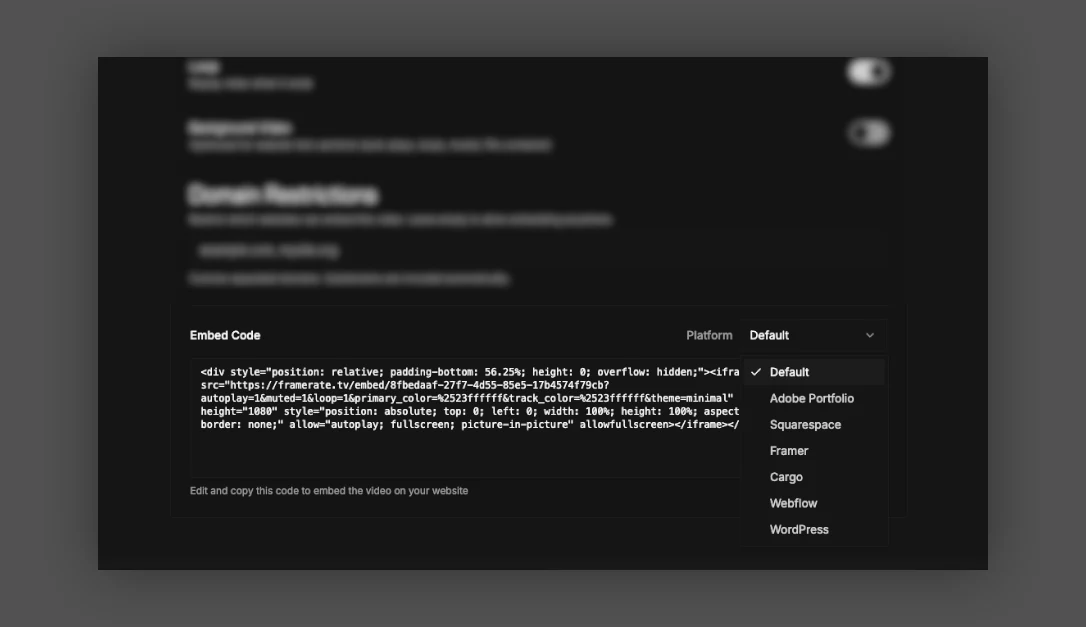
When you open Embed Settings on a video, you'll see a Platform dropdown with options for Webflow, Framer, Squarespace, Cargo, Adobe Portfolio, and WordPress.
Here's what that dropdown actually does: every platform handles pasted HTML a little differently. Some want a responsive wrapper around the iframe. Some have their own container and get confused if you bring your own.
The dropdown just adjusts the markup so the player sizes correctly on that specific platform. The video and the player are identical no matter what you pick.
So the dropdown isn't a list of the only places FrameRate works. It's a list of places we've pre-solved the quirks for you:
Webflow: drop in an Embed element, paste, publish
Framer: insert an Embed component, paste into the HTML field
Squarespace: add a Code Block, paste
Cargo: use a Page Embed module or Custom HTML block (Cargo strips iframes from rich text, so don't paste into a text field)
Adobe Portfolio: add an Embed widget, paste
Wix: add an Embed HTML element, paste (use the Default option here)
WordPress: add a Custom HTML block, paste (Default option here too)
Everywhere else
If your platform isn't on that list, use Default. That's it.
Shopify. Ghost. Readymag. Format. Semplice. A hand-coded site you built in 2011 and are afraid to touch. A React app. A client's CMS you've never heard of.
If it accepts HTML, the embed should work.
Make it yours
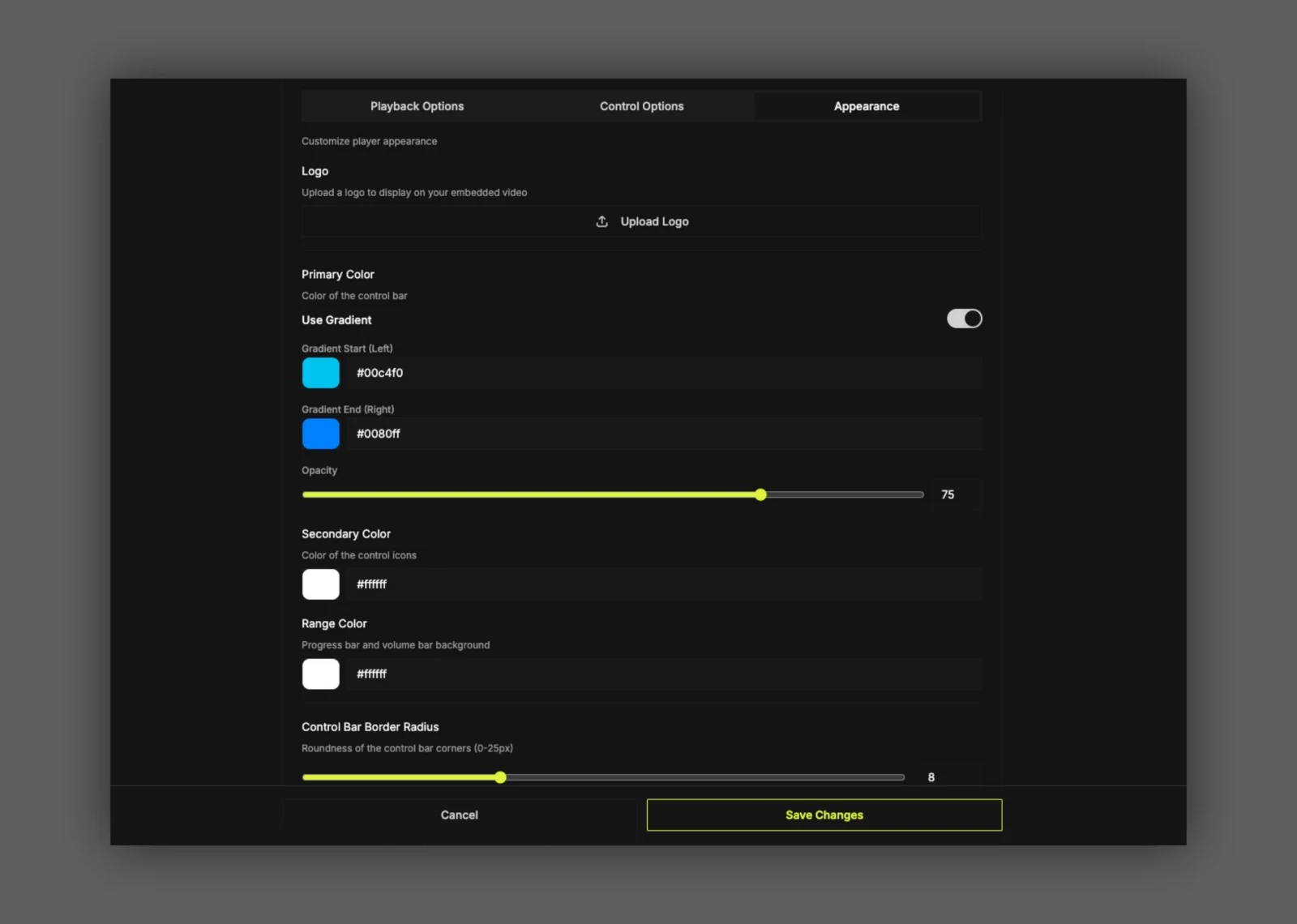
The embedded player is super customizable, giving you control over:
Accent, primary, and track colors (solid or gradient)
Control bar opacity, padding, and corner radius
Which controls appear, from the play button down to picture-in-picture
Autoplay, mute, and loop behavior
Your own logo on the player
Background video mode, which turns off controls and sets autoplay, mute, and loop in one click (perfect for hero sections)
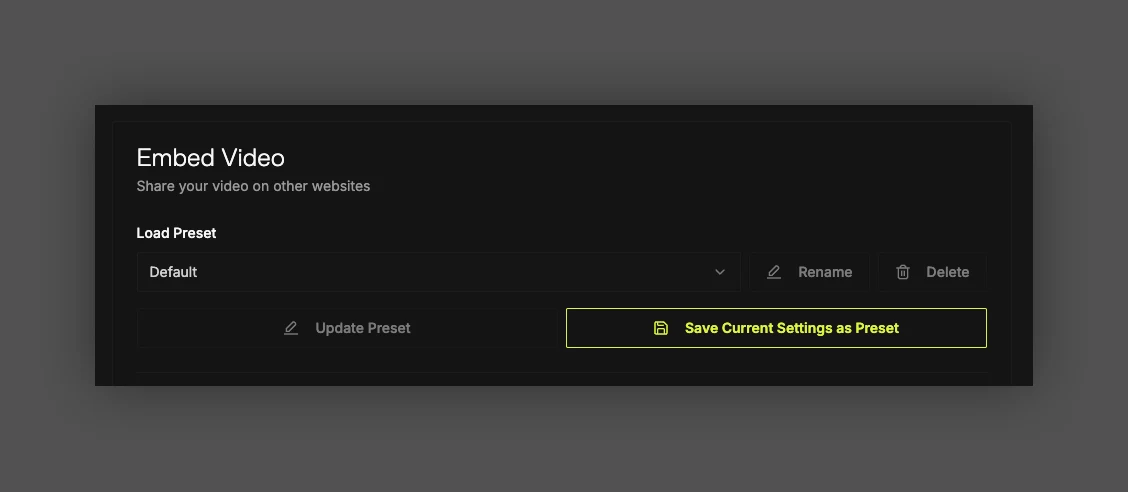
If you embed often, save your settings as a preset and every future embed starts from your look instead of ours.
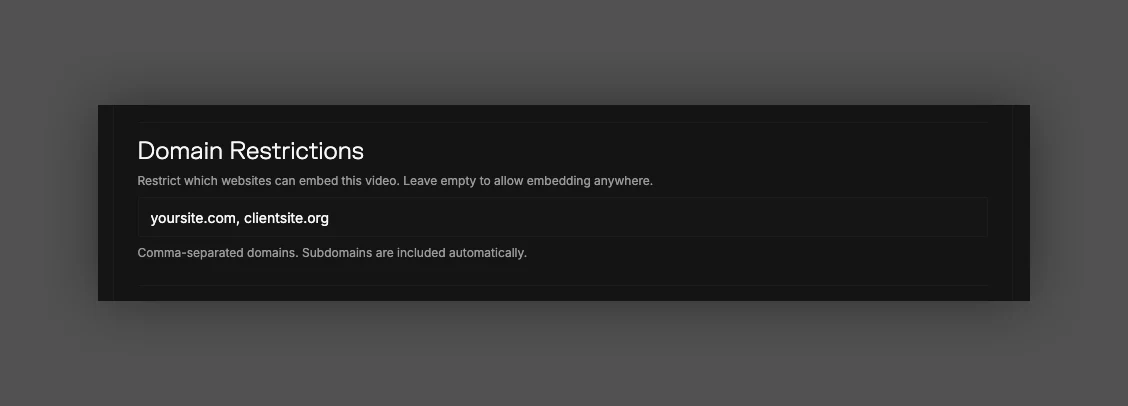
You can also control where your embeds are allowed to live.
Add allowed domains to a video and the embed will refuse to load anywhere else, which is handy when client work needs to stay on the client's site.
One more thing worth knowing: public videos, private videos, password-protected videos, even videos you've hidden from FrameRate entirely all play fine in embeds.
How to get the embed code
Open your Library and click the menu on the video you want to embed
Choose Embed Settings
Pick your platform from the dropdown (or Default)
Customize the player if you like; the preview updates live
Copy the code and paste it into your site
Embeds are included on every FrameRate plan, including Free.
So: your portfolio, your client's site, your studio's homepage, that side project you swore you'd finish this year. Wherever your work needs to show up, it can show up in a player that looks like it belongs there.
If you hit a snag, tell us and we'll help you out. ✌️